

Create Parametric Parts
Parametric parts are normal fusion Parts that have 3 possible parameters attached to them:
- Double
- Text
- Bool
Prerequisites
- You must have the Parametric Text package installed from the fusion app store.
https://parametrictext.readthedocs.io/en/stable/installation.html
ONFUSE is not liable for this package, nor do we sell this package. It is from a third party.
In each section below, we will explain on how to use them and what would be the benefits of using this.
Exporting the part to MES Cloud
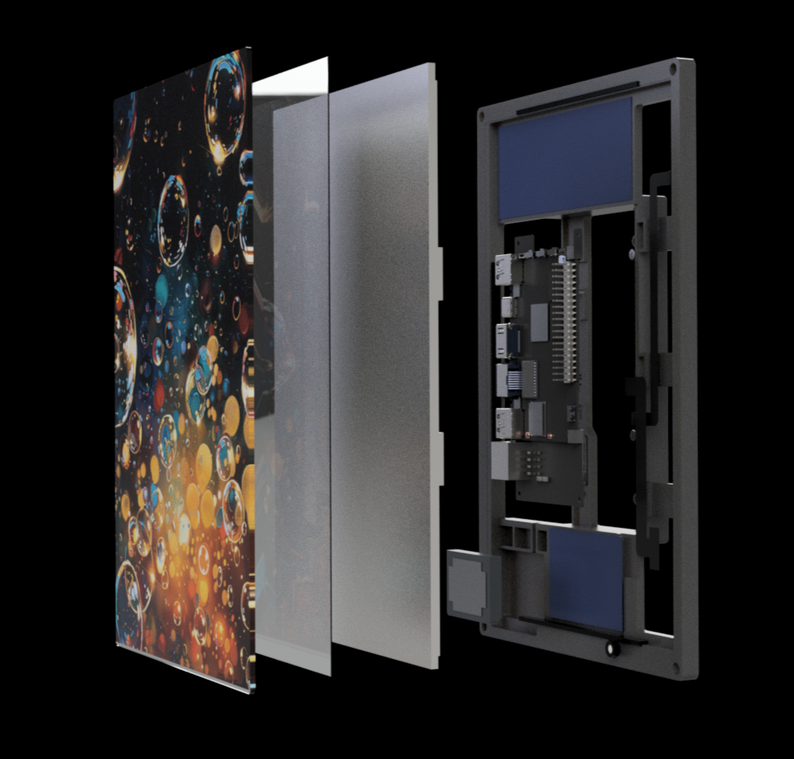
The final part should look like this in Fusion:
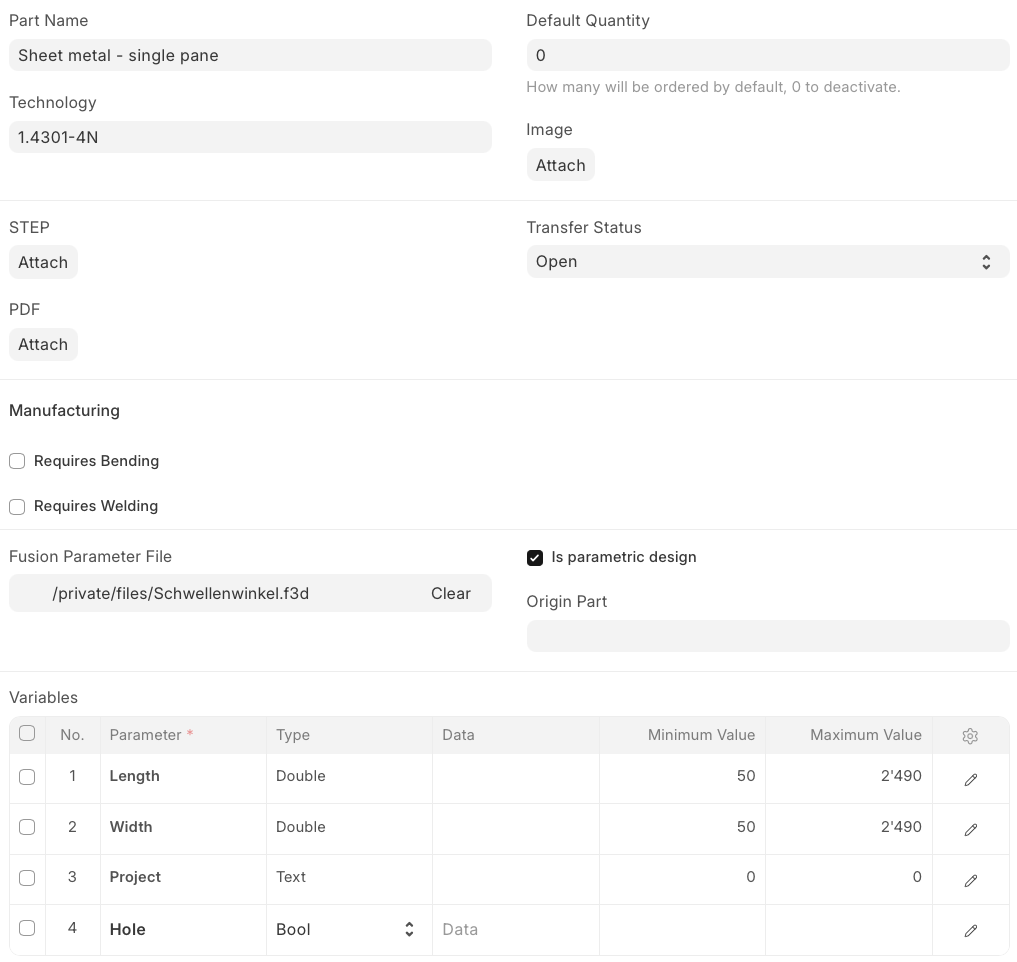
Of course you will not need all the variables.
Parameter - Double
In our example, we will create a sheet metal part with only 2 parameters, Length and Height.
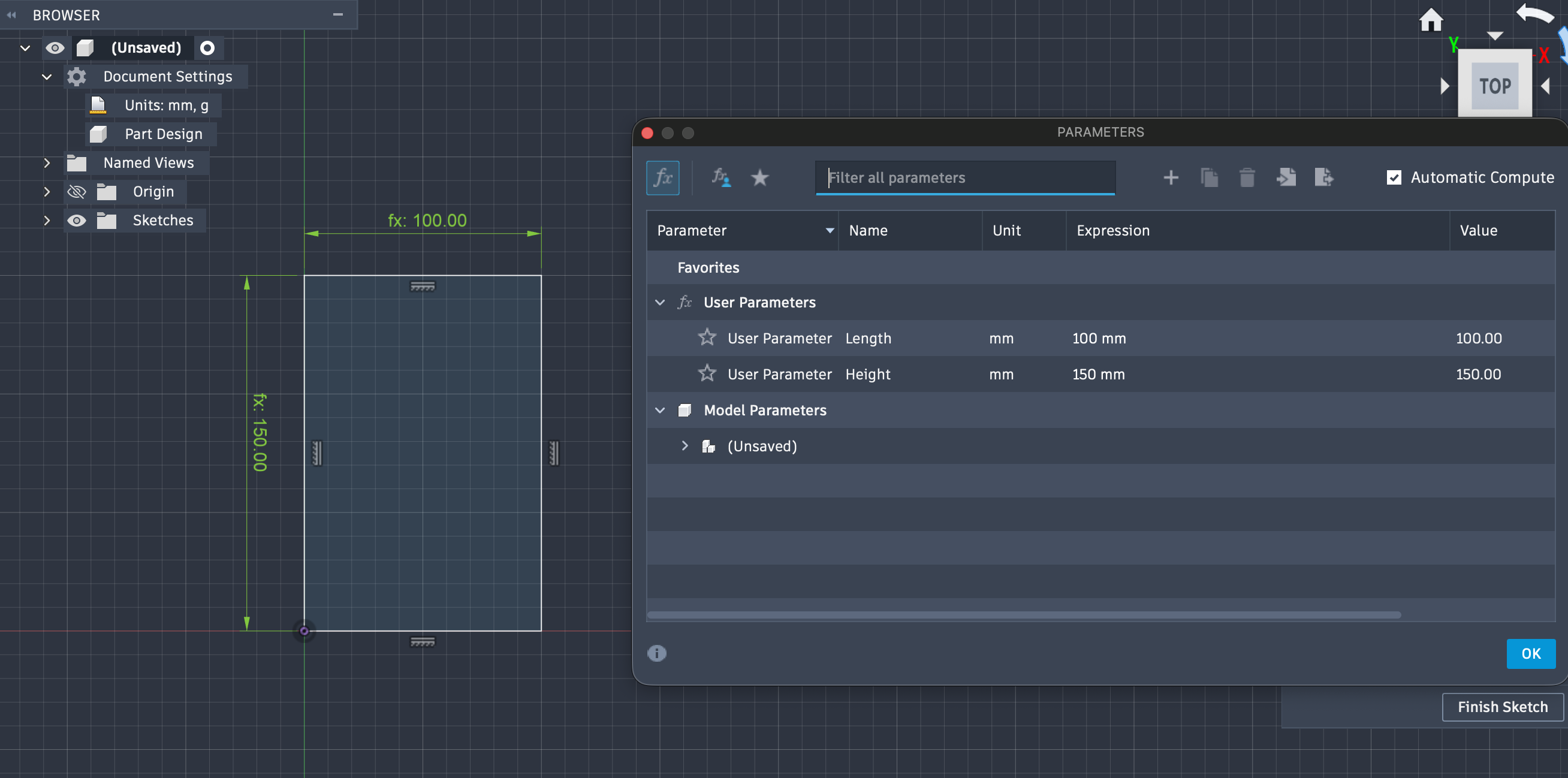
Parameter - Text
Parameter Text is used whenever you want to add a comment to a part. For example, this could be for an engraving.
In our example, we want to have the project on there.
- Add the text with the engraving
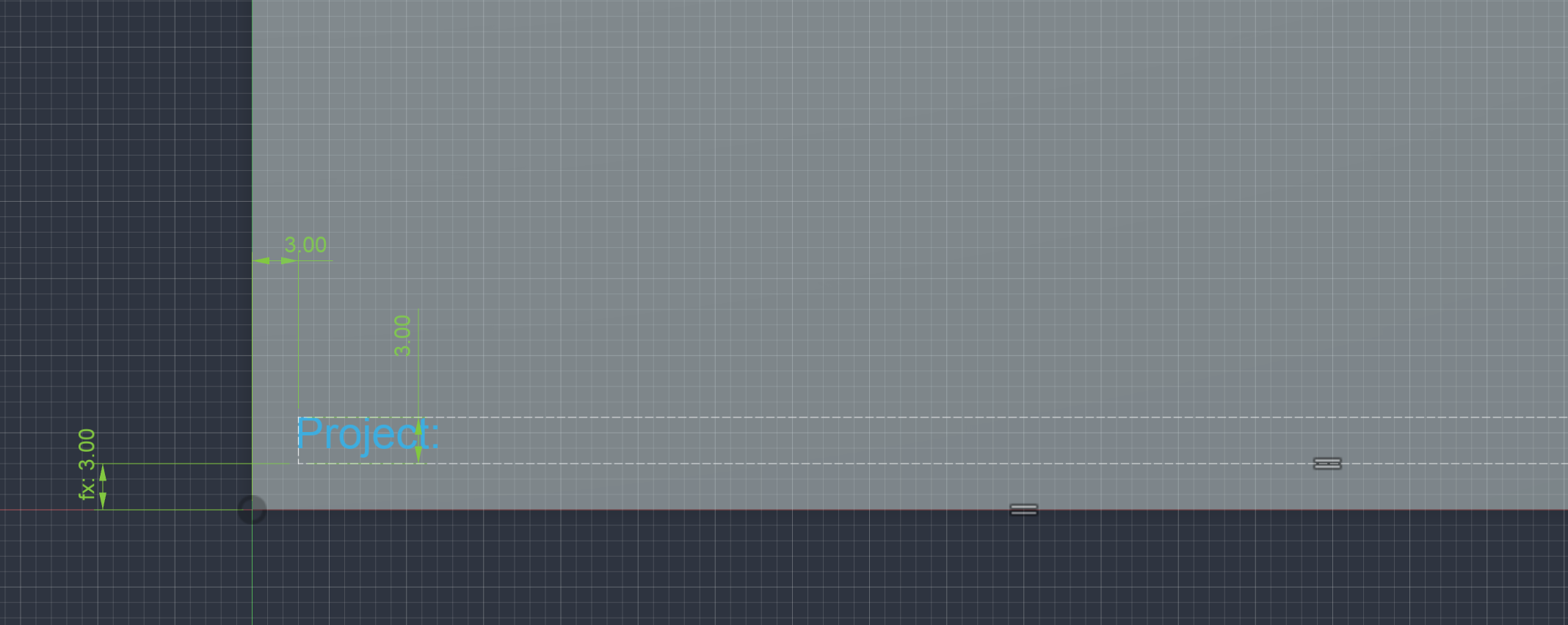
- Add the variable Project, later the comment will be used as the text that can be manipulated so we would recommend adding Test as a comment to see if the parameter works.

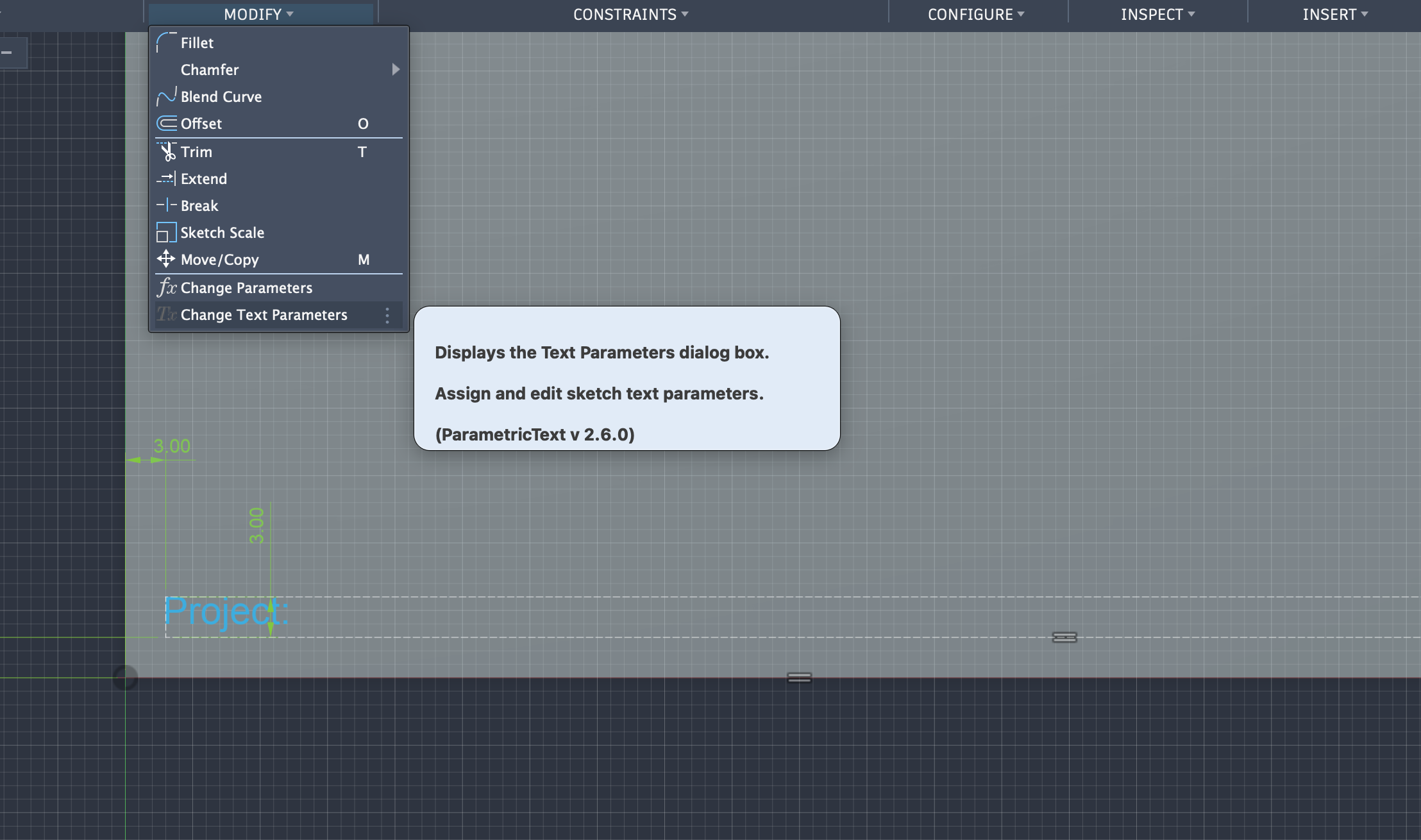
- Press on change Text Parameters
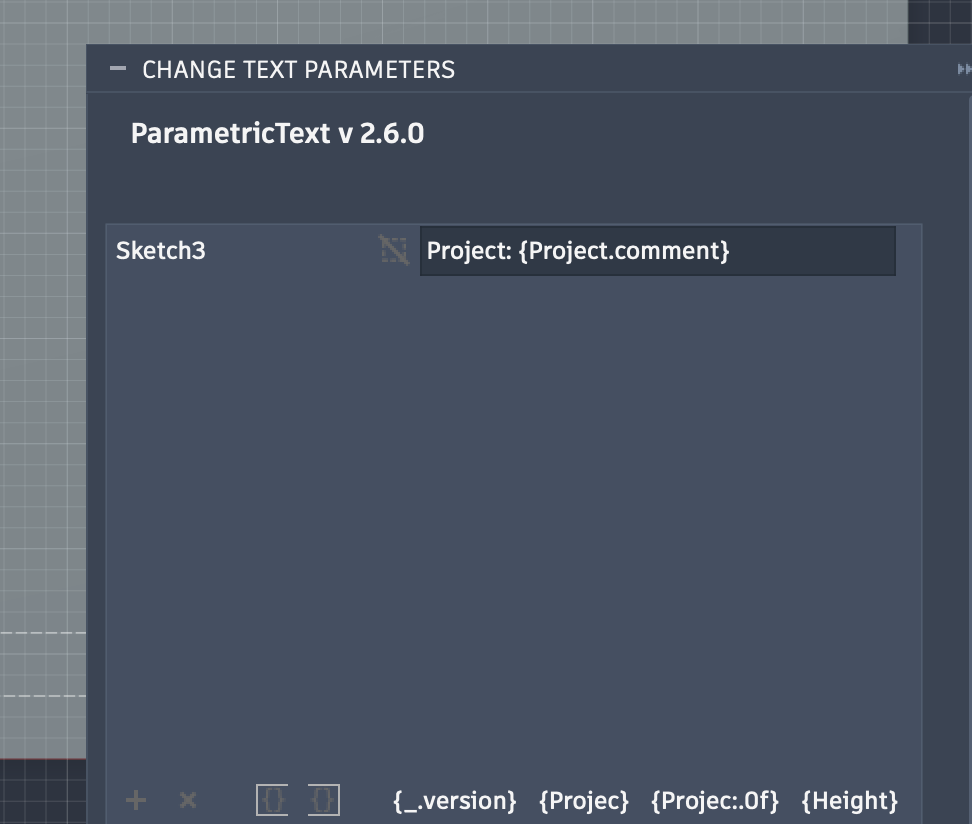
- Add the desired text with the variable in the curly brackets.
Parameter - Bool
Bools are ment for enabling and disabling features, that can be an additional flange or a cutout.
In our example case we are going to make a 60mm cutout in our sheet metal part.
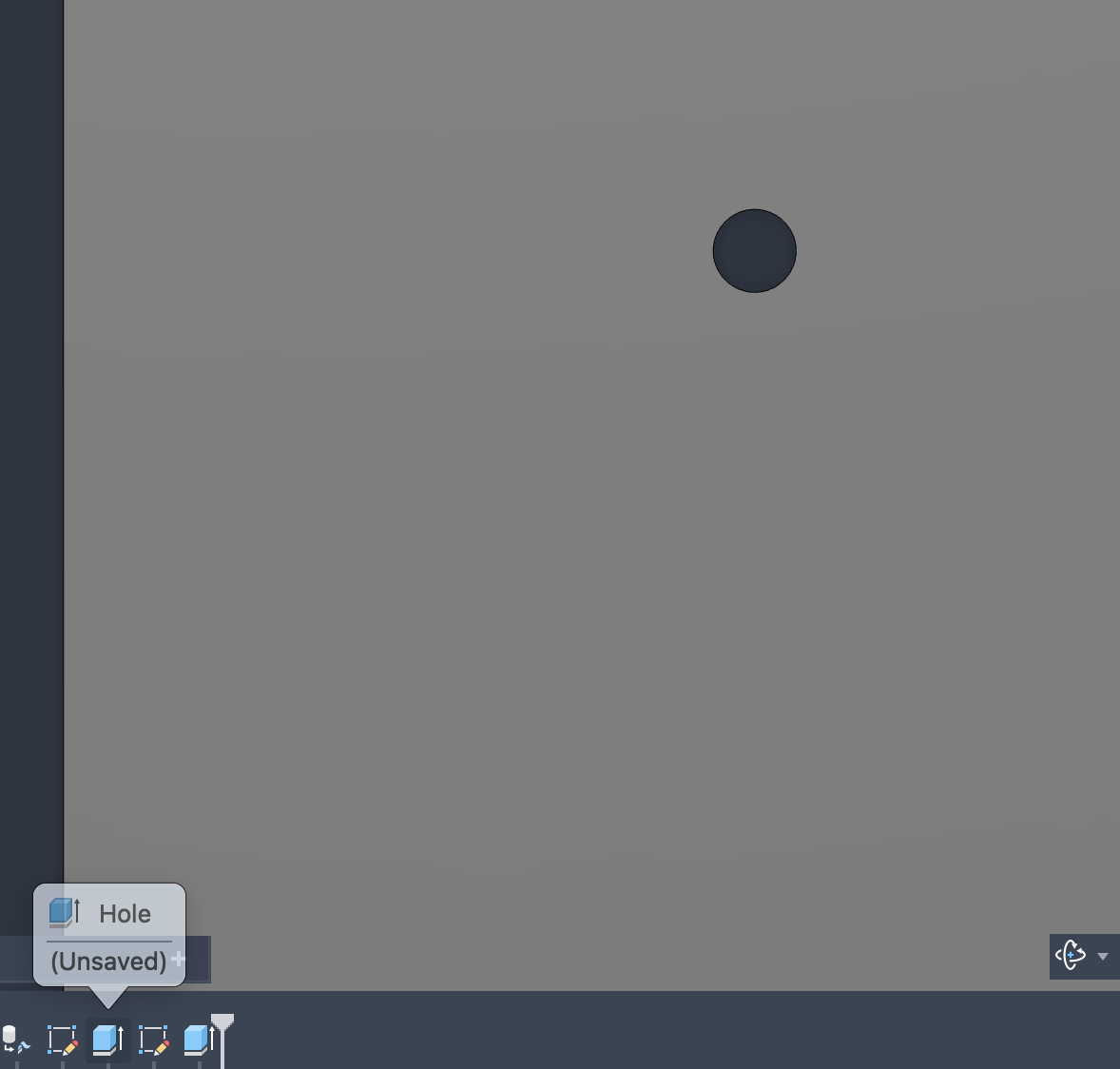
We are going to rename the extrusion to Hole as per the parameter we set previously in the MES Part.
Supporting PDFs
The instructions for the manufacturing should follow the naming convention of the variables, since both will be visible when the operator looks at the part(s).
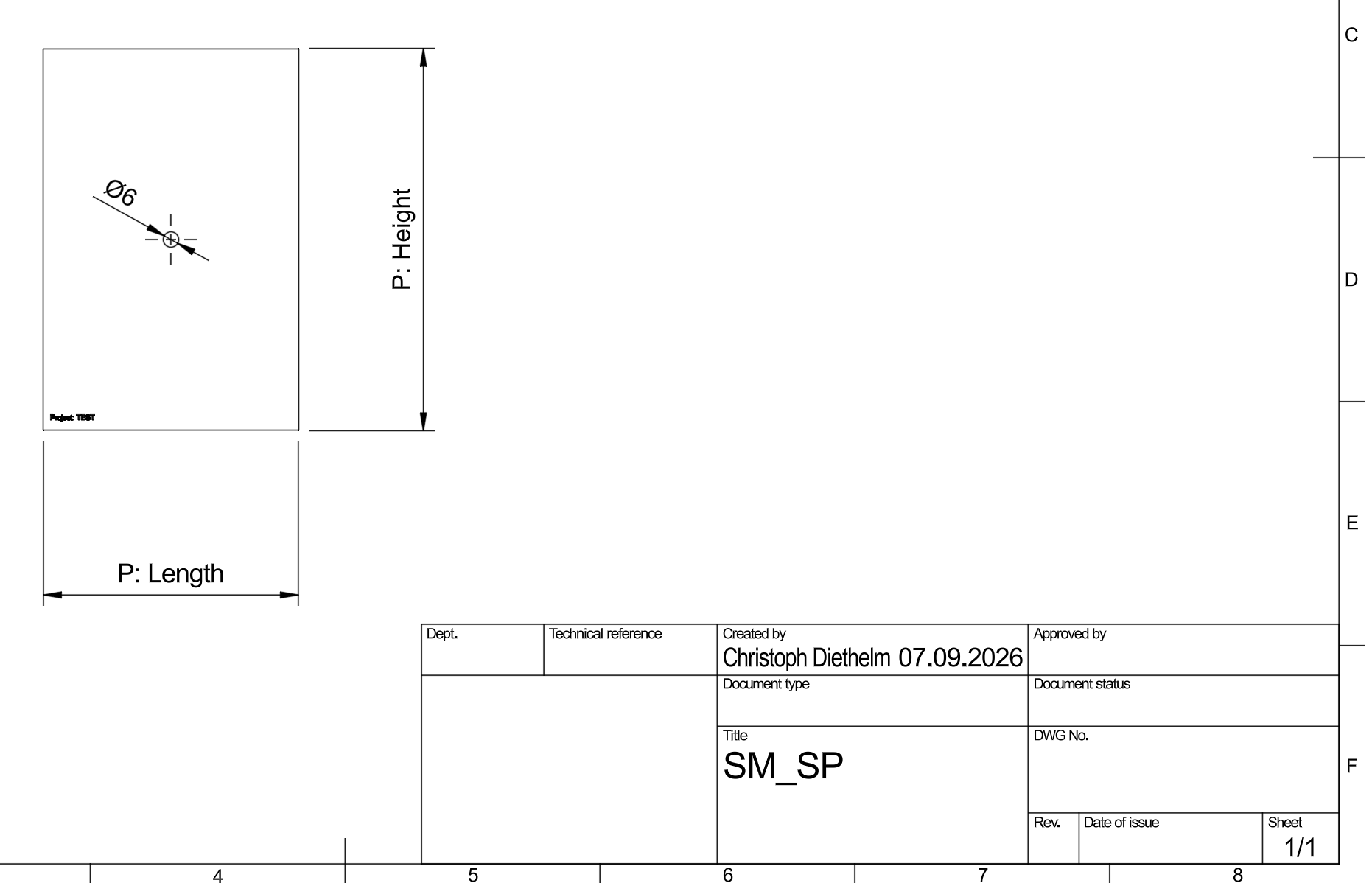
The drawing should look like this since the variables can change.
Alternatively, you can also add the measurements on the part directly, therefore a drawing would not be necessary.