


On the first boot, a setup page will appear where you can completely setup the display the way it was intended.
Prerequisites
- Smart Display powered on
- (Optional) ONFUSE Account for the cloud connection
- (Optional) ONFUSE Gateway for cloud connection & emergency phone functionality (upcoming)
- (Optional) Compatible elevator controller
Step by step guide
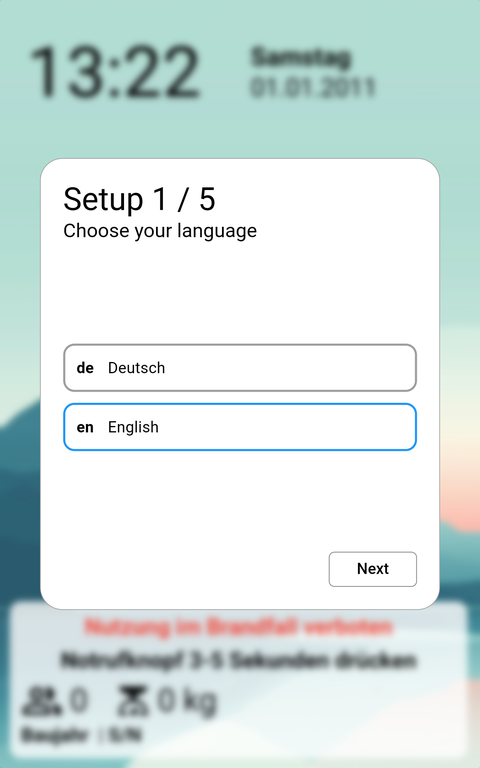
Step 1 - Language
This setting will also apply for the spoken texts inside the cabin.
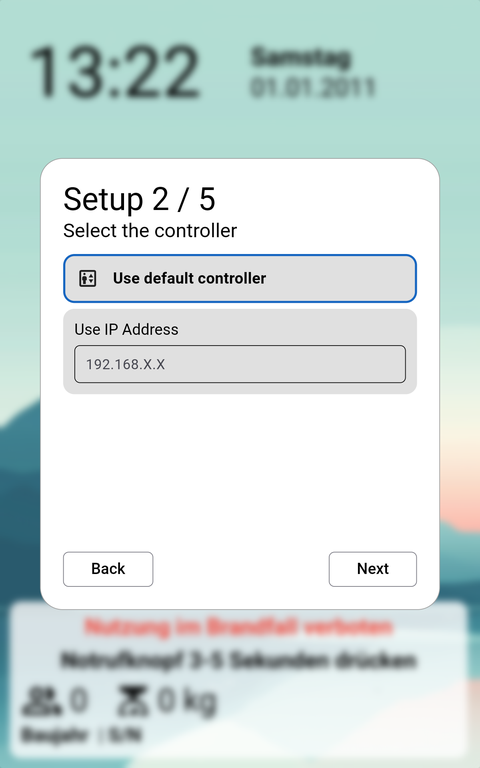
Step 2 - Controller
When you only have a single elevator, you can use the default controller. If you are using a duplex / triplex configuration, it is recommended to either enter the IP Address or let the autoscan finish (There will be popups in 20 Seconds with all devices on the network).
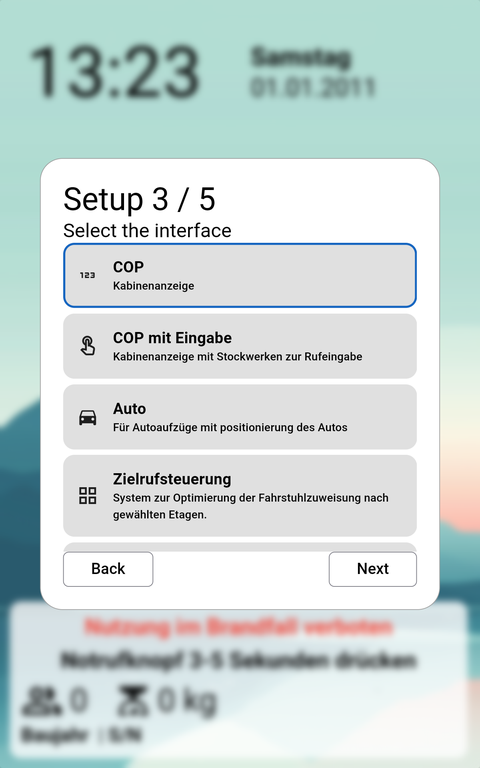
Step 3 - Interface
Please checkout Operation Modes for additional information. Recommended setting is COP with input.
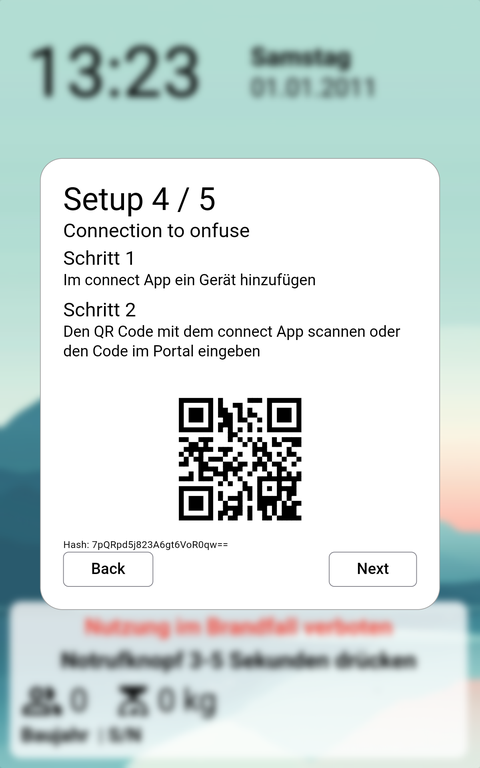
Step 4 - Cloud connection
This setting will also apply for the spoken texts inside the cabin.
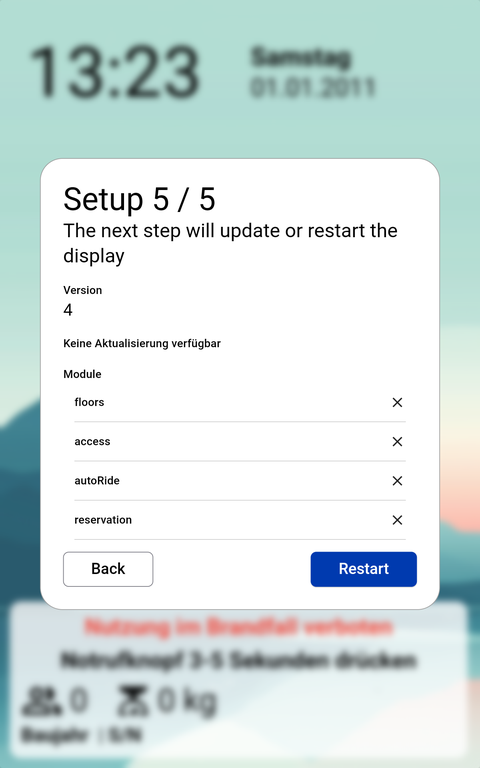
Step 5 - Version
Here you can see the current version of the elevator and all the enabled modules. You can enable modules lateron form the connect app.
Last updated 8 months ago
Was this helpful?